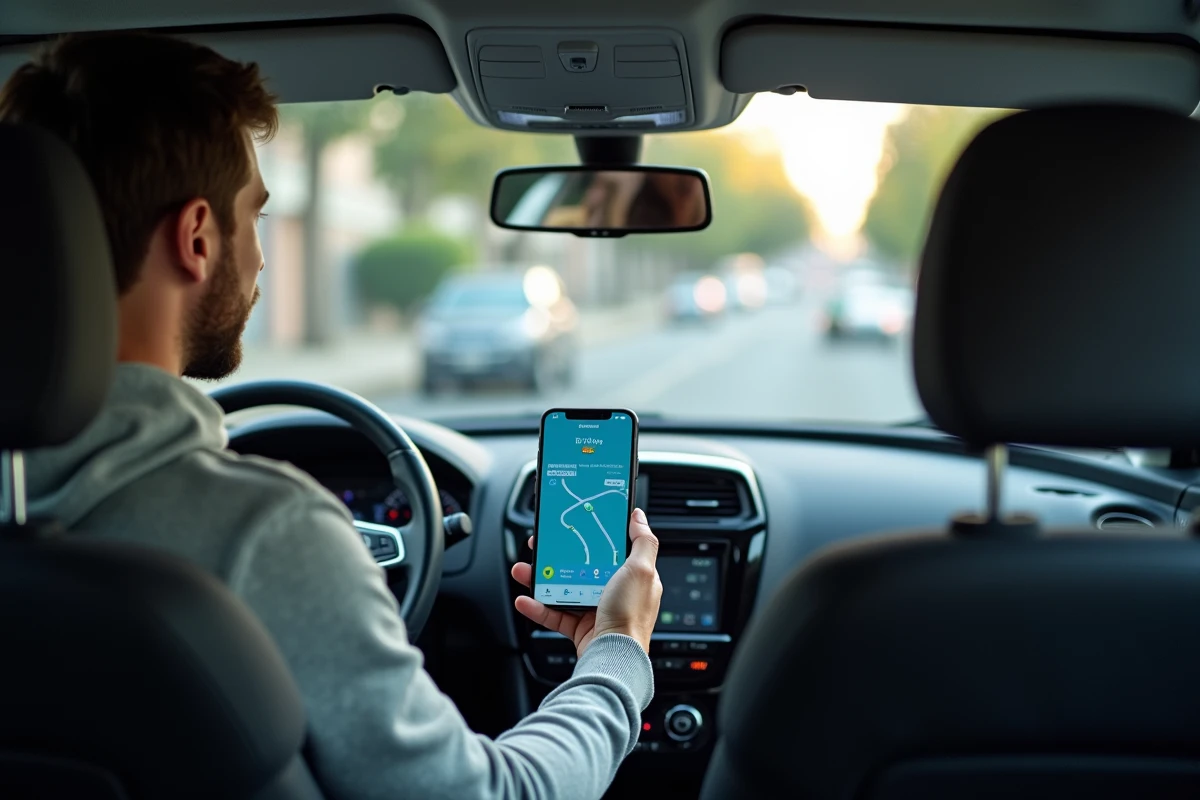
Waze remains one of the most used GPS applications in France, particularly thanks to community alerts about speed cameras, accidents, and traffic jams. However, projecting it onto the car’s screen via Android Auto is not just a matter of plugging in a USB cable. Between the required Android versions, vehicle settings, and silent incompatibilities, getting started can be blocked for no apparent reason.
Android Auto and Waze Compatibility: What the System Really Requires
Android Auto works with Waze, but not in all configurations. The first filter is the version of Android installed on the phone. Devices running Android 8.0 or higher support Android Auto natively, without needing to download a separate app from the Play Store.
For earlier versions (Android 6.0 and 7.0), the Android Auto app must be installed manually. Below Android 6.0, compatibility is no longer guaranteed.
The second filter concerns the vehicle. Not all car radios support Android Auto, even in recent models. Some manufacturers limit the functionality to specific trims or multimedia option packs. Before any manipulation, checking the compatibility of the embedded system with Android Auto remains a prerequisite that many drivers overlook. A detailed guide explains how to display Waze on Android Auto covering various hardware situations.
Waze must also be up to date. An outdated version of the app may not appear in the Android Auto launcher, without an explicit error message. Updating via the Play Store resolves this issue in most cases.
USB or Wireless Connection: Impact on Waze Stability
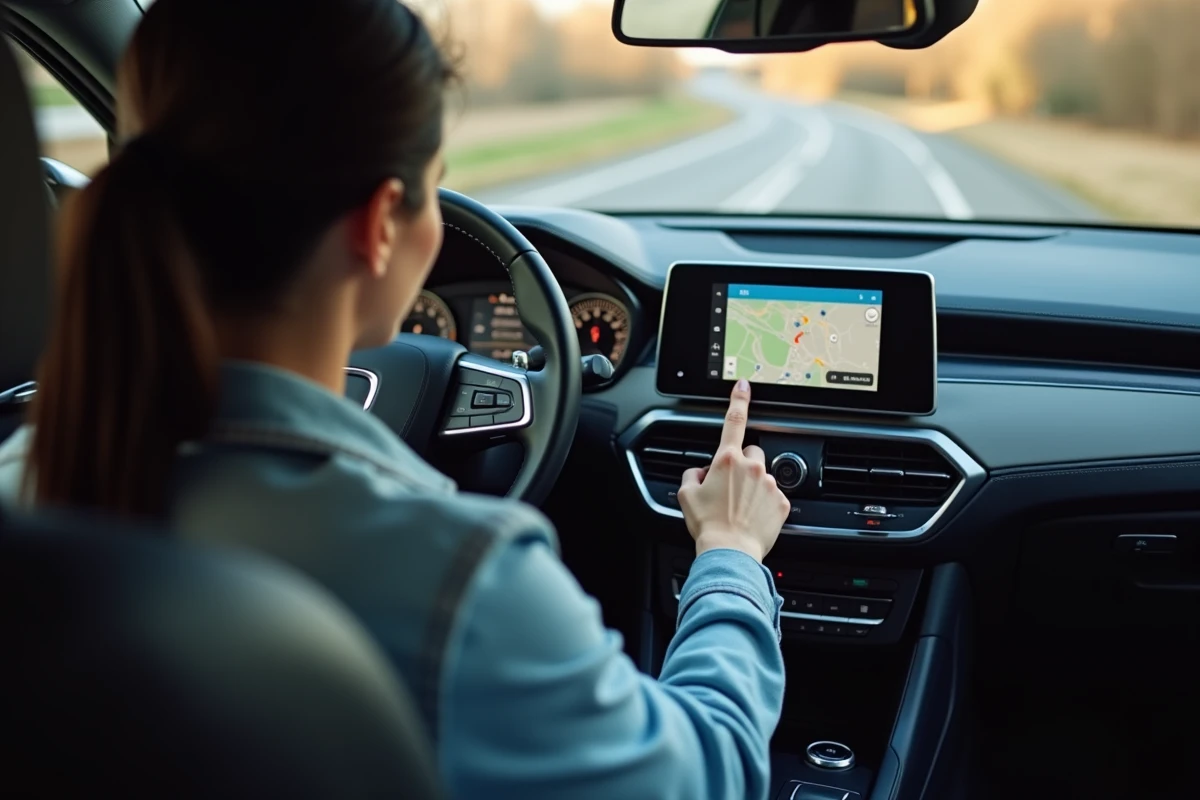
Android Auto connects to the vehicle in two ways: via USB cable or Wi-Fi (wireless Android Auto). The choice is not trivial for using Waze.
USB Cable: The Most Reliable Connection
The wired connection remains the most stable method. It powers the phone while transmitting data. The quality of the cable plays an underestimated role: an uncertified USB cable can cause random disconnections, navigation dropouts, or a black screen on the car radio.
Using a short cable (less than one meter), preferably the one provided with the phone, limits these incidents. Low-cost cables sold at gas stations often cause problems.
Wireless Mode: Convenient but Demanding
Wireless Android Auto requires a compatible car radio (relatively few models before 2022) and a phone running Android 11 or higher for most brands. Google has gradually expanded compatibility, but user feedback varies on this point depending on phone-vehicle combinations.
With wireless mode, Waze may take a few extra seconds to load the map at startup. Battery consumption also increases, as the phone is no longer powered by the USB port.
- Ensure that Bluetooth and Wi-Fi on the phone are enabled simultaneously, as wireless Android Auto uses both
- First pair the phone via classic Bluetooth with the vehicle, then enable Android Auto in the car radio settings
- Restart the phone and multimedia system if the connection fails during the first pairing
Waze vs Google Maps on Android Auto: Concrete Display Differences
Android Auto defaults to Google Maps. Switching to Waze requires a manual action for each trip, unless Waze is set as the default navigation app in the Android Auto settings.
The Waze interface on Android Auto is simplified compared to the smartphone version. The reporting menu (accident, police, hazard) remains accessible, but customization options (voice, visual themes) are limited. Address searches go through voice input or favorites saved in the app.
Google Maps displays more detailed mapping (3D buildings, satellite images in preview). In contrast, Waze stands out for the density of real-time community alerts. For a commute in a dense urban area, Waze reports offer a responsiveness that Google Maps does not replicate with the same granularity.
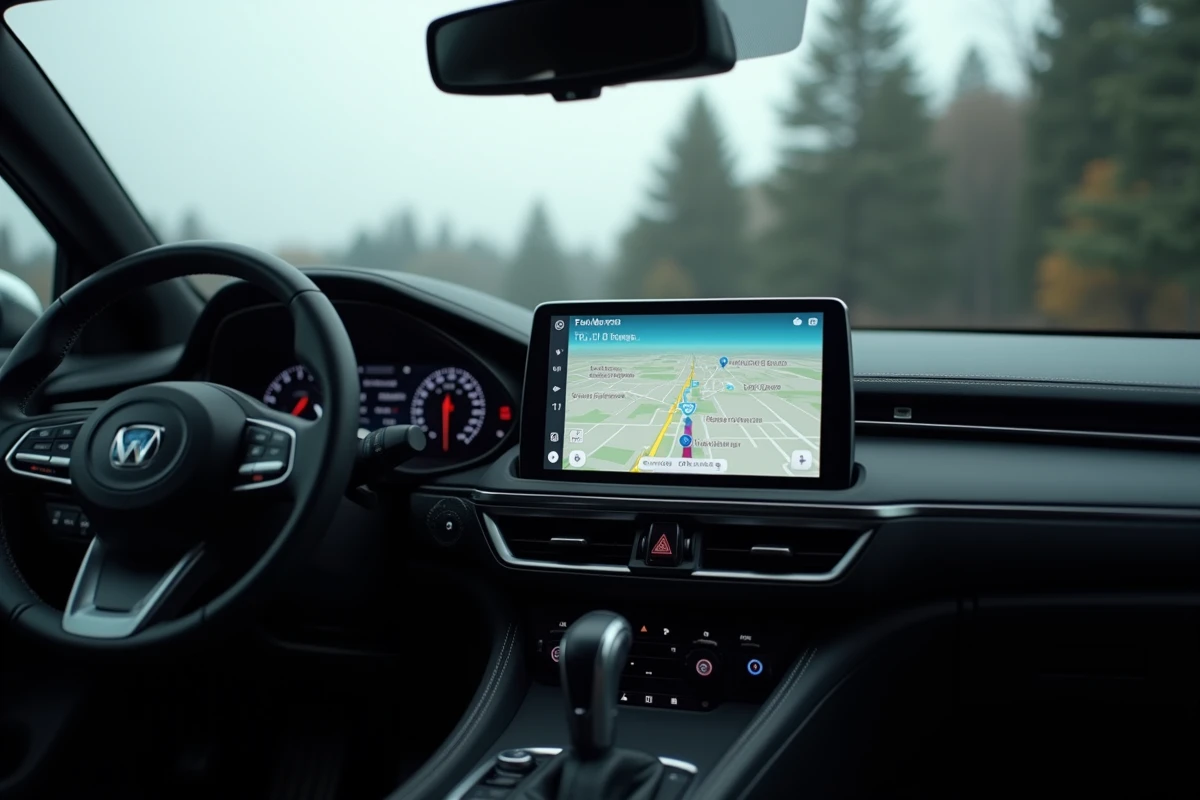
A less documented point: Waze on Android Auto does not allow displaying the dashboard (speedometer, altimeter) available on the phone version. This limitation comes from Android Auto itself, which restricts the elements displayed on the screen to minimize distraction while driving.
Common Issues and Solutions When Waze Refuses to Launch
Several situations frequently arise in user feedback.
The most common case: Waze does not appear in the list of Android Auto apps. Three possible causes cover almost all situations:
- Waze is not installed or not up to date on the phone. Open the Play Store, search for Waze, and check if an update is pending
- Android Auto does not have permission to access Waze. In the Android Auto settings on the phone, the “Customize Launcher” section allows you to enable or disable visible apps
- The cache of Android Auto is corrupted. Clear the cache of the Android Auto app (Settings > Apps > Android Auto > Storage > Clear Cache) and then reconnect the phone to the vehicle
Another situation reported by users: after an update of Android Auto, Waze disappears and Google Maps takes over automatically. This behavior, reported on several forums, can be corrected by uninstalling and then reinstalling Waze, followed by restarting Android Auto.
If the problem persists despite these manipulations, testing with another USB cable or another USB port in the vehicle can help isolate a hardware failure.
Current Limitations of Waze on Android Auto
Waze on Android Auto does not replicate the complete experience of the mobile app. The split-screen display (map + audio player) depends on the vehicle’s screen resolution, and some entry-level car radios only display one app at a time.
The voice command “OK Google” allows launching Waze navigation without touching the screen, but voice recognition of French addresses containing compound names or accents remains improvable. Spelling out the address or using a pre-recorded favorite proves more reliable.
The Waze app on Android Auto also does not handle multi-stop trips in the same way as on the phone. Adding an intermediate stop requires going back through voice search or modifying the route directly on the smartphone, which is not recommended while driving.
Projecting Waze onto the vehicle’s screen simplifies driving, provided one accepts these interface compromises. For most daily trips, community navigation and real-time alerts more than compensate for the missing features.